Excel Datas Viewer
Excel Datas Viewer
Excel Datas Viewer
1. 前言
最近经常处理 Excel 数据,为了方便地观察数据写了一个可视化工具。
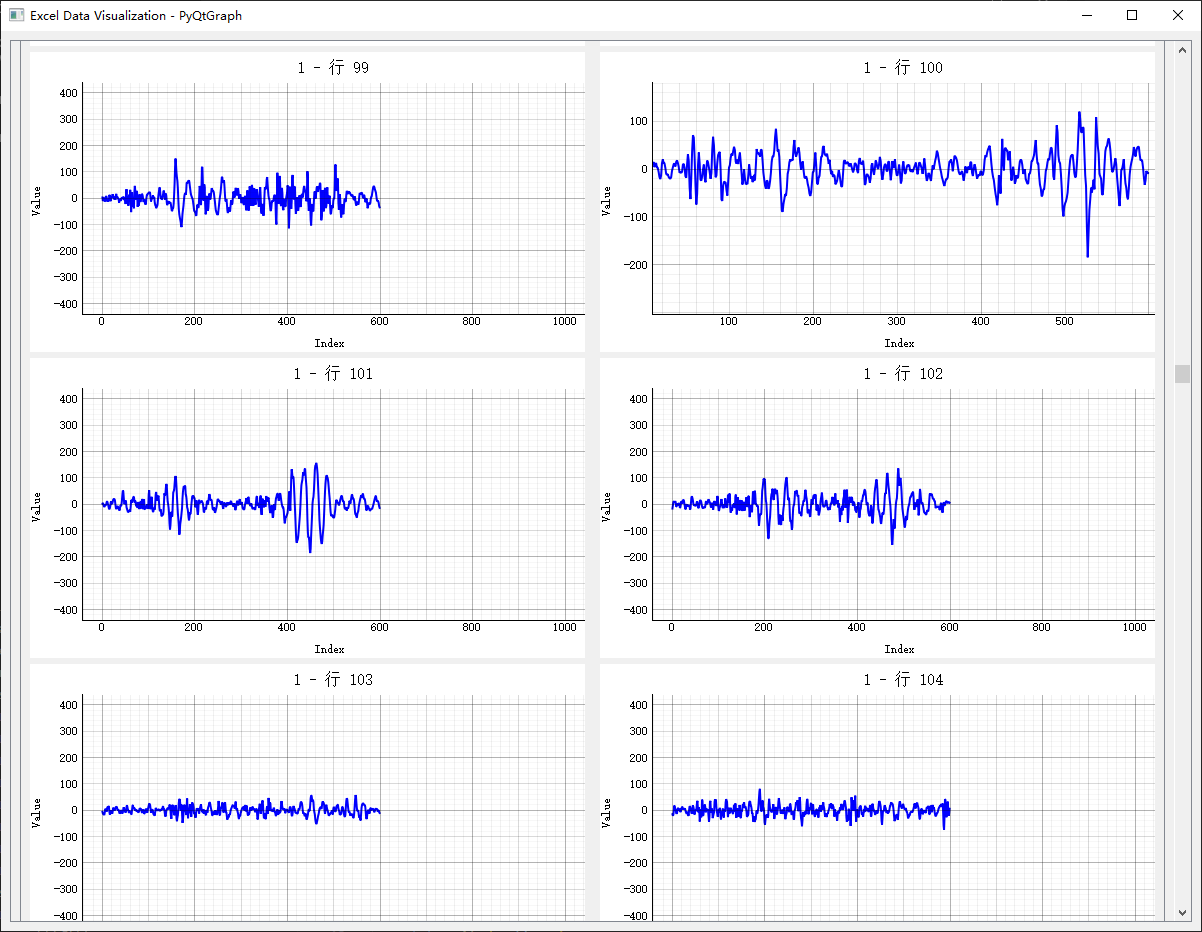
此程序会读取指定的 Excel 文件中的每一个 Sheet 的每一行数据,并以折线图的形式展示出来。
2. 功能说明
- 选择 Excel 文件:添加了一个 QPushButton 用于调用文件资源管理器,用户可以通过点击按钮选择 Excel 文件。
- 输入框:添加了三个 QLineEdit 用于输入 charts_per_row、y_range 和 x_range 的值。
- 更新按钮:添加了一个 QPushButton 用于更新设置,点击该按钮后,程序会重新加载 Excel 文件并更新图表。 清空图表:在重新加载 Excel 文件之前,会清空之前的图表,确保每次更新都是最新的设置。
3. Code
1
python tools\excel_chart_viewer.py data\real_data_sheet_cls_5_artificial_cut.xlsx
1
2
3
4
5
6
7
8
9
10
11
12
13
14
15
16
17
18
19
20
21
22
23
24
25
26
27
28
29
30
31
32
33
34
35
36
37
38
39
40
41
42
43
44
45
46
47
48
49
50
51
52
53
54
55
56
57
58
59
60
61
62
63
64
65
66
67
68
69
70
71
72
73
74
75
76
77
78
79
80
81
82
83
84
85
86
87
88
89
90
91
92
93
94
95
96
97
98
99
100
101
102
103
104
105
106
107
108
109
110
111
112
113
114
115
116
117
118
119
120
121
122
123
124
125
126
127
128
129
130
131
132
133
134
135
136
137
138
139
140
141
142
143
144
145
146
147
148
149
150
151
152
153
154
155
156
157
158
159
160
161
162
163
164
165
166
167
168
169
170
171
172
173
174
175
176
177
178
179
180
181
182
183
184
185
186
187
188
189
190
191
192
193
194
195
196
197
198
199
200
201
202
203
204
205
206
207
208
209
# 25 Y
# 50 AX
# 75 BW1
# 100 CV
# 200 GR
# 400 OJ
# 500 SF
# 550 UD
# 600 WB
import sys
import os
import warnings
import pandas as pd
import numpy as np
from PyQt5.QtWidgets import (QApplication, QMainWindow, QWidget, QVBoxLayout,
                             QScrollArea, QHBoxLayout, QLabel, QFrame, QPushButton,
                             QLineEdit, QFileDialog)
from PyQt5.QtCore import Qt
import pyqtgraph as pg

# 抑制警告输出
class NullWriter:
    def write(self, s):
        pass

original_stderr = sys.stderr
sys.stderr = NullWriter()
warnings.filterwarnings("ignore")

class ExcelChartViewer(QMainWindow):
    def __init__(self):
        super().__init__()
        self.excel_path = None
        self.charts_per_row = 2
        self.y_range = 400
        self.x_range = 600
        self.setWindowTitle("Excel Data Visualization - PyQtGraph")
        self.setGeometry(100, 100, 1200, 900)

        # 设置PyQtGraph样式
        pg.setConfigOption('background', 'w')
        pg.setConfigOption('foreground', 'k')
        pg.setConfigOption('antialias', True)

        self.initUI()

    def initUI(self):
        # 创建中央部件和布局
        central_widget = QWidget()
        self.setCentralWidget(central_widget)

        # 主布局
        main_layout = QVBoxLayout(central_widget)

        # 输入控件布局
        input_layout = QHBoxLayout()

        # 选择文件按钮
        select_file_button = QPushButton("选择 Excel 文件")
        select_file_button.clicked.connect(self.select_excel_file)
        input_layout.addWidget(select_file_button)

        # charts_per_row 输入框
        self.charts_per_row_input = QLineEdit(str(self.charts_per_row))
        input_layout.addWidget(QLabel("每行图表数量:"))
        input_layout.addWidget(self.charts_per_row_input)

        # y_range 输入框
        self.y_range_input = QLineEdit(str(self.y_range))
        input_layout.addWidget(QLabel("Y 轴范围:"))
        input_layout.addWidget(self.y_range_input)

        # x_range 输入框
        self.x_range_input = QLineEdit(str(self.x_range))
        input_layout.addWidget(QLabel("X 轴范围:"))
        input_layout.addWidget(self.x_range_input)

        # 更新按钮
        update_button = QPushButton("更新设置")
        update_button.clicked.connect(self.update_settings)
        input_layout.addWidget(update_button)

        main_layout.addLayout(input_layout)

        # 创建滚动区域
        scroll_area = QScrollArea()
        scroll_area.setWidgetResizable(True)

        # 图表容器
        self.charts_container = QWidget()
        self.charts_layout = QVBoxLayout(self.charts_container)
        self.charts_layout.setSpacing(20)

        scroll_area.setWidget(self.charts_container)
        main_layout.addWidget(scroll_area)

    def select_excel_file(self):
        file_dialog = QFileDialog()
        file_path, _ = file_dialog.getOpenFileName(self, "选择 Excel 文件", "", "Excel Files (*.xlsx *.xls)")
        if file_path:
            self.excel_path = file_path
            self.load_excel_data()

    def update_settings(self):
        try:
            self.charts_per_row = int(self.charts_per_row_input.text())
            self.y_range = int(self.y_range_input.text())
            self.x_range = int(self.x_range_input.text())
            if self.excel_path:
                self.load_excel_data()
        except ValueError:
            print("输入必须为整数,请重新输入。")

    def load_excel_data(self):
        # 清空之前的图表
        while self.charts_layout.count():
            item = self.charts_layout.takeAt(0)
            widget = item.widget()
            if widget:
                widget.deleteLater()

        if not self.excel_path:
            return

        # 读取Excel文件,不自动识别标题行
        excel_file = pd.ExcelFile(self.excel_path)

        # 处理每个sheet
        for sheet_name in excel_file.sheet_names:
            try:
                # 读取时不使用第一行作为列名,全部作为数据
                df = pd.read_excel(excel_file, sheet_name=sheet_name, header=None)
                if df.empty:
                    continue

                # 添加sheet标题
                sheet_frame = QFrame()
                sheet_frame.setFrameShape(QFrame.StyledPanel)
                sheet_layout = QVBoxLayout(sheet_frame)

                sheet_label = QLabel(f"Sheet: {sheet_name}")
                sheet_label.setStyleSheet("font-size: 16px; font-weight: bold;")
                sheet_layout.addWidget(sheet_label)

                # 为每行数据创建图表
                self.create_row_charts(df, sheet_name, sheet_layout)

                self.charts_layout.addWidget(sheet_frame)

            except Exception as e:
                print(f"Error processing sheet {sheet_name}: {e}")

    def create_row_charts(self, df, sheet_name, parent_layout):
        # 处理每一行
        for i in range(len(df)):
            # 每行创建水平布局放置多个图表
            if i % self.charts_per_row == 0:
                row_layout = QHBoxLayout()
                row_layout.setSpacing(15)
                parent_layout.addLayout(row_layout)

            # 获取当前行数据
            row_data = df.iloc[i]

            # 创建图表
            plot_widget = self.create_line_plot(row_data, f"{sheet_name} - 行 {i+1}")
            row_layout.addWidget(plot_widget, stretch=1)

    def create_line_plot(self, row_data, title):
        # 创建绘图部件
        plot_widget = pg.PlotWidget()
        plot_widget.setMinimumSize(400, 300)

        # 清理数据
        clean_data = row_data.replace([np.inf, -np.inf], np.nan).dropna()
        if len(clean_data) < 2:
            return plot_widget

        # 绘制曲线
        plot_widget.plot(clean_data.values, pen=pg.mkPen('b', width=2))

        # 设置图表标题和标签
        plot_widget.setTitle(title, color='k', size='12pt')
        plot_widget.setLabel('bottom', "Index")
        plot_widget.setLabel('left', "Value")

        # 设置Y轴范围
        if self.y_range is not None:
            plot_widget.setYRange(-self.y_range, self.y_range)

        # 设置X轴范围
        if self.x_range is not None:
            plot_widget.setXRange(0, self.x_range)

        # 添加网格
        plot_widget.showGrid(x=True, y=True, alpha=0.3)

        return plot_widget

if __name__ == "__main__":
    app = QApplication(sys.argv)
    viewer = ExcelChartViewer()
    viewer.show()

    # 恢复stderr
    sys.stderr = original_stderr

    sys.exit(app.exec_())
This post is licensed under CC BY 4.0 by the author.